




Register Today
Create your free account and access exclusive features that will enhance your Career Mode experience.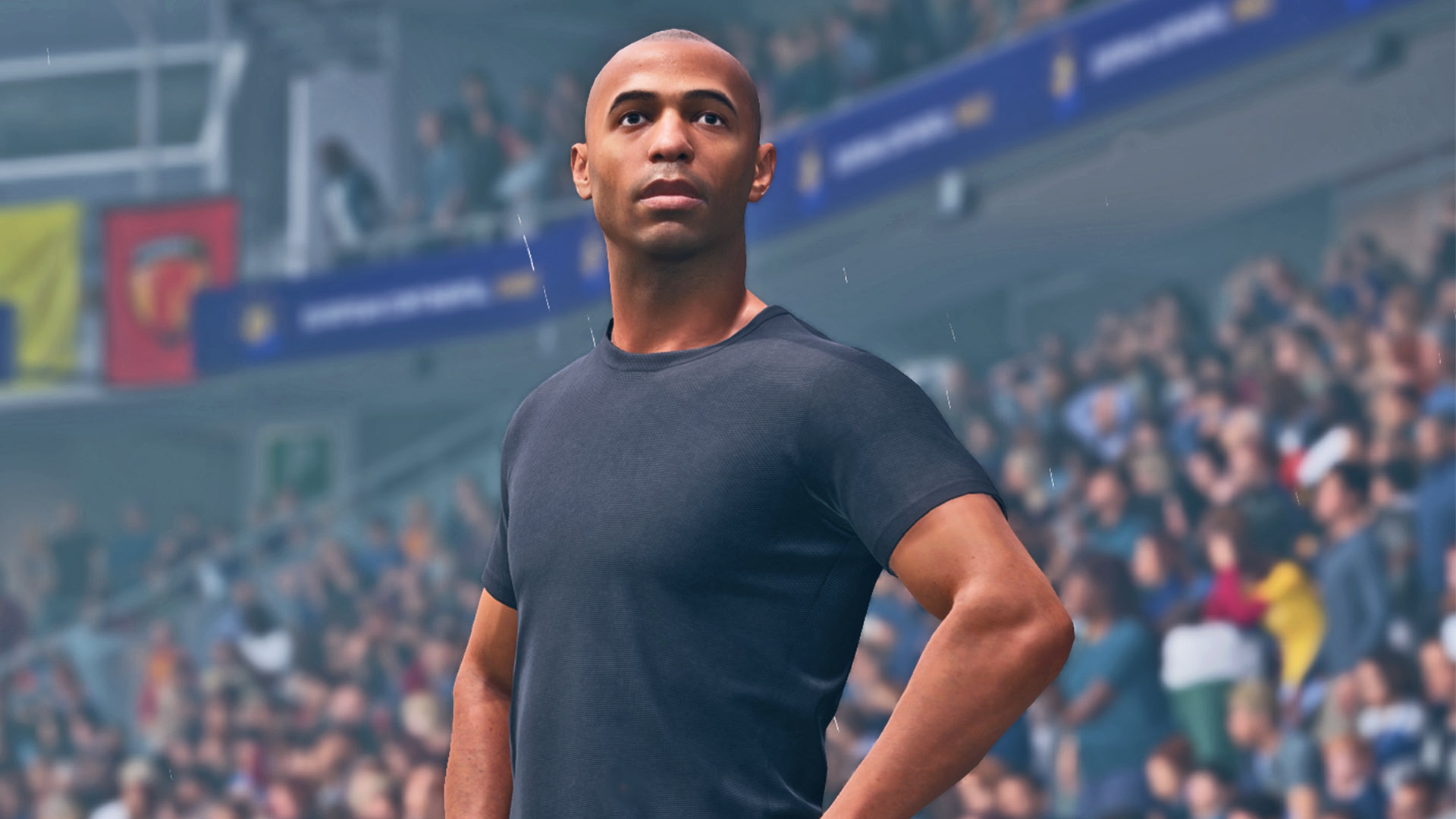
How To Use Icons as Managers and Players in FC 26 Career Mode
EA recently dropped its FC 26 Holiday Update and with almost no fanfare, unexpectedly added Classic Teams featuring some of the most prominent icons the football world has ever seen. Most players already know these Icons from Ultimate Team, so there’s no need to reintroduce them.
However, what does matter is the unexpected discovery that you can transfer these Classic Teams’ Icons directly into Career Mode.
Here’s a complete guide on how to use Classic Teams’ Icons as Managers and Players in FC 26 Career Mode. Just make sure you’ve downloaded the latest title and Squads Update for everything to work!
How To Use Icons in Manager Career
Follow these steps if you want to add icons to your club for a normal Manager Career save:
- Step 1: From the main menu, go to Settings > Edit Teams > Club Transfers.
- Step 2: Open Search > Detailed Search. Set OVR 85+ and Age 32+ to reveal Classic Teams’ icons. However, some icons may not appear using these filters, so in those cases, search for them manually by name.
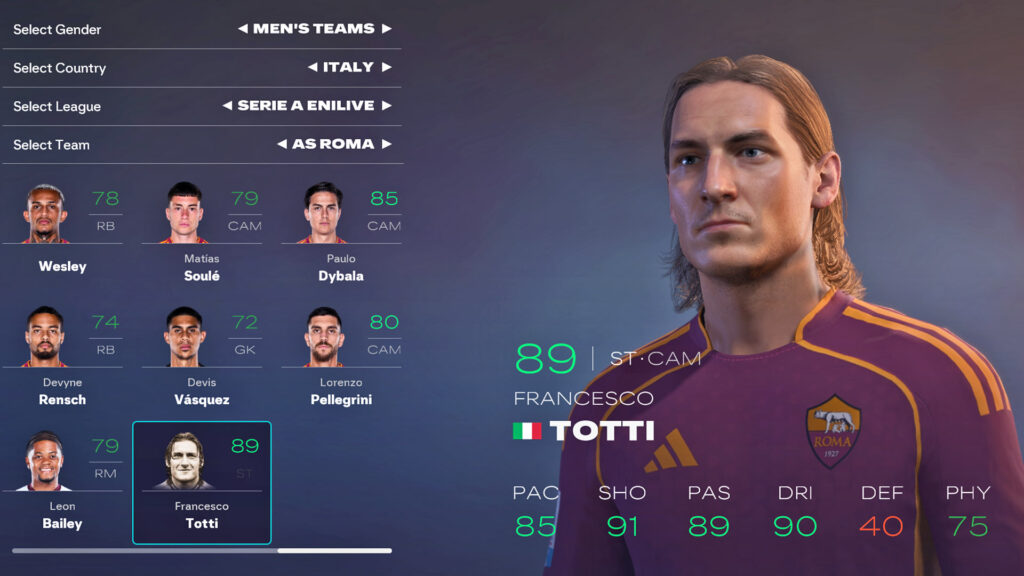
- Step 3: Select the icon and transfer them to the team you want to use in your Manager Career. For example, move Francesco Totti to AS Roma.
- Step 4: Start a new Manager Career and select Use Current Squads.
Your icons will now appear in your squad like normal players. However, keep in mind that not all icons can be transferred, due to factors such as shortages in their respective Classic Team squads.
How to Use Icons in Player Career
If you want to play as an icon in Player Career, follow these steps:
- Step 1: Move the icon to any team you prefer using Edit Teams > Club Transfers.
- Step 2: Start a Player Career with Current Squads and choose Play as Real Player.
- Step 3: Go to the team you placed the icon in and select them from the list. Again, if you can’t find the player, search by name as some icons don’t appear under filters.
How to Retire and Use Icons as Your Manager
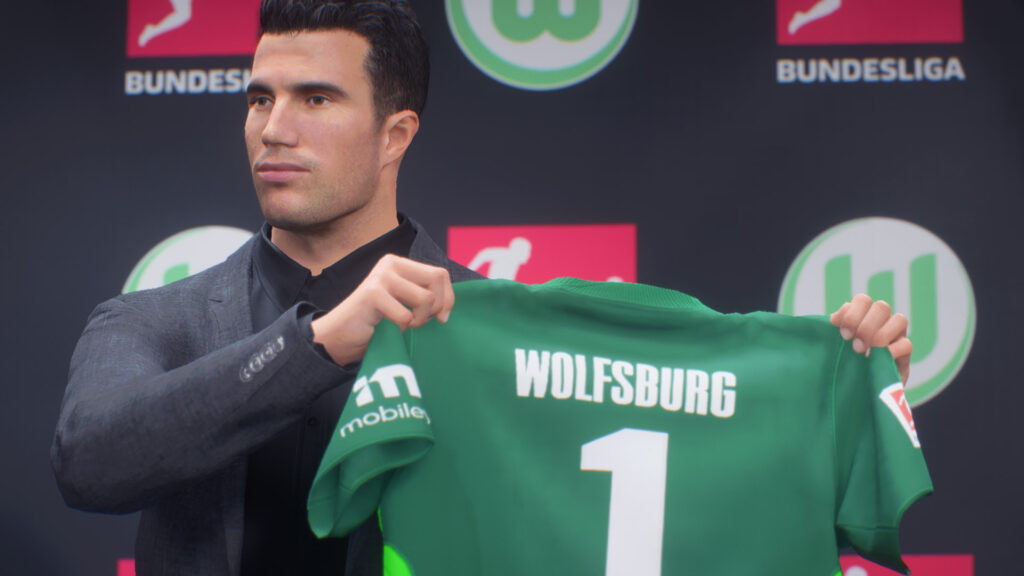
If you want to begin a Player Career as an Icon and eventually turn them into a manager, here’s how to do it:
- Step 1: Follow the same transfer setup as above by going to Settings > Edit Teams > Club Transfers.
- Step 2: Transfer your chosen icon to any club you prefer.
- Step 3: Start a Player Career with Current Squads and choose Play as Real Player.
- Step 4: In Player Career menu, Go to My Pro > My Career and select Retire
- Step 5: After retirement, you can choose to continue as a manager by selecting an available job offer
Classic Teams arrived in FC 26 unexpectedly, but the ability to bring their icons into your saves gives you a fresh way to personalize your Career Mode experience. It can shake up the Manager Market and make it exciting to see whether these legends can guide the new wonderkids on the block to stardom.

Upload your PC Career Save and unlock your in-game database


